
Adding Medication
When adding medication to a service users profile, there are a number steps to follow to ensure the administration is managed to tailor both the needs of the Care Home and the service user.
These steps will walk you through the process and help you understand how best to manage adding medication.
Add Medication
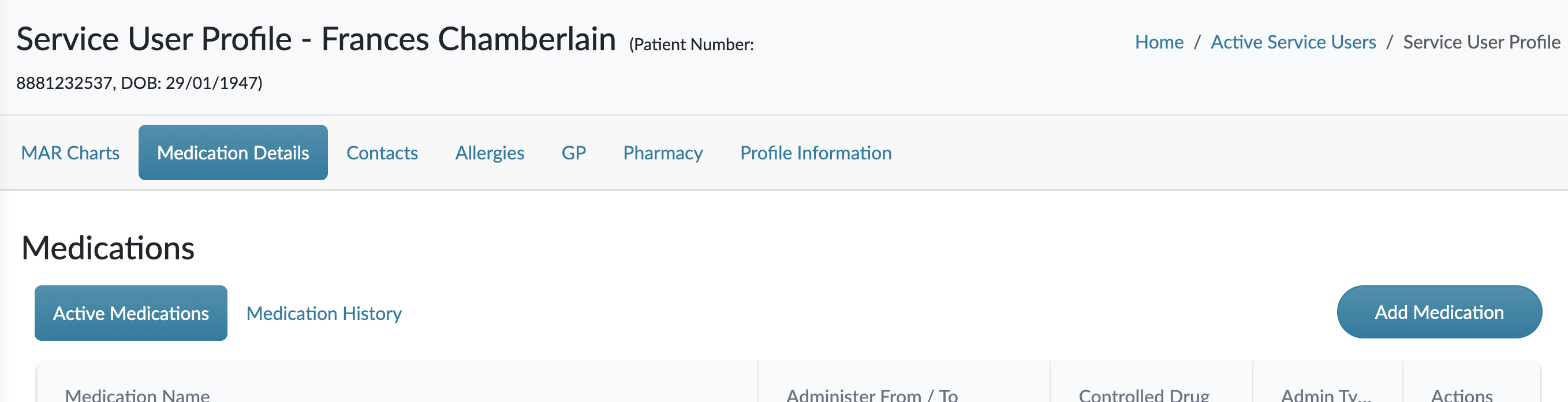
From within a service users profile, you will see ‘Medication Details’. This will give you an overview of all the current active medication the service user has. From there you will have the ability to ‘Add Medication’.
Search for a Medication
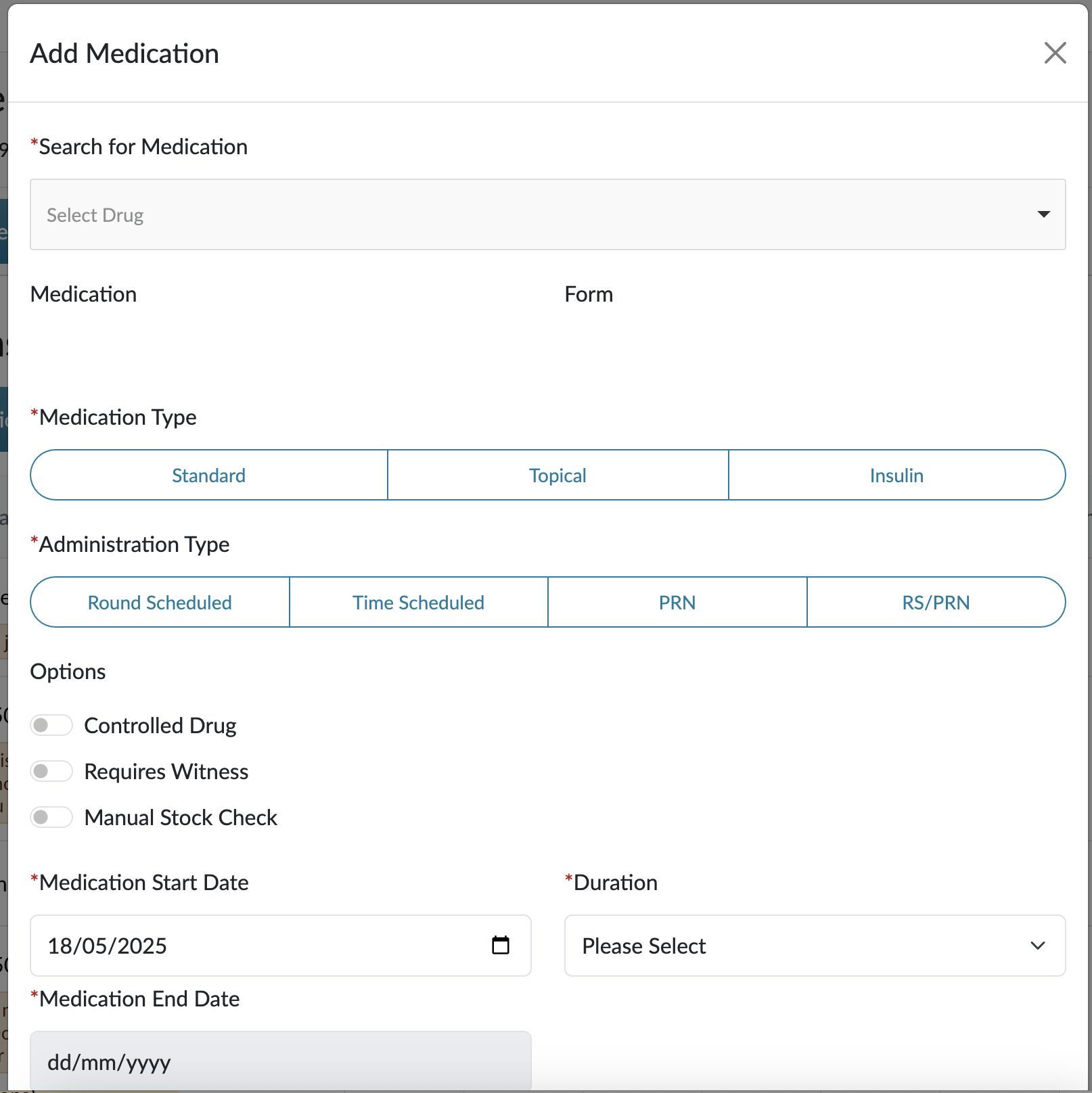
You will need to search for the medication you need to add. When you have entered at least 3 characters, you will be presented with a list of medications to search. You will then need to select the medication from the list of results displayed. Once selected, it will be displayed on screen along side the associated ‘Form’.
Medication Type
You will need to select a medication type to enable the system to help you manage how this medication will be administered.
Topical - This must be selected if the medication you are adding is required for topical application.
Insulin - This must be selected if the medication you are adding is of the type ‘Insulin’.
Standard - This is for all other medications that are not ‘Topical’ or ‘Insulin’.
Administration Type
You must now select how the medication will be ‘scheduled’ to be administered.
Round Schedule (RS) - As part of the daily round schedule.
PRN - For medications that are to be administered ‘When Required’.
Time Scheduled - For medications to be administered at specific times, that do not align with your rounds.
RS/PRN - This is predominantly used for Care Homes within Scotland, where a medication is prescribed for both Round Schedule and When Required.
Complex Dose - For both Round Schedule and Time Schedule, you will have be able to set this administration as ‘Complex Dose’, meaning the medication is not required to be administered every day.
Custom Options
Complex Dose
As mentioned above, this will only be available when Round Schedule or Time Schedule has been selected as the administration type. When this is selected, you will be able to set a complex dose schedule for the administration of that medication.
Controlled Drugs
When a controlled drug requires safe storage, this must be selected and it will allow the system to prompt users to return the controlled drug back to is safe storage location.
When a medication is selected, if it falls within a specific ‘Controlled Drug Schedule’ this will be selected ‘on’. For certain drugs, you will be able to turn this off if you have specific policies for medication where you can manage the safe storage.
Requires Witness
As with Controlled Drugs, this will be set automatically by the system for medication that requires a witness for when it is administered. For certain drugs, this can be turned off to align with you own policies for when a medication must have a witness to be administered.
Manual Stock Check
For certain medications, mainly Topical creams, the system cannot decrement the stock inline with how it needs to be applied. For example ‘A pea sized amount’. To help manage stick levels, when this is selected as ‘on’, a report will be generated for all the associated medications that require a ‘Manual Stock Check’ to take place when creating an order, to ensure the medication is ordered at the right time.
Medication Start Date and Duration
When adding a medication, a start date is required to set when administration of the medication must begin. You can then set the duration:
- 7 days
- 14 days
- 21 days
- 28 days
- Continuous
- Custom (max 56 days)
When a duration is selected (excluding Continuous or Custom), the system will calculated the end date of the medication.
If you select Continuous, HxCare will default the end date to 1 year in the future. As HxCare creates schedule data when a medication is added, it can't add a never ending amount of schedules, so a period of 1 year was selected as an appropriate amount of time. Medication should be being reviewed by the GP during this time anyway.
If ‘Custom’ is selected, you will be able to set a specific end date (to a maximum of 56 days from the start date) for the length of time the medication needs to be administered.
Once you have added all of this information, you will be able to continue onto the next step.
Minimal Interval (Hours)
As standard (excluding Time Scheduled) the system will support medication administration by ensuring there is a minimal time interval of 4 hours between each dose. You will not be prevented from administering the medication, but the system will alert you when the last dose was given within 4 hours.