
Tenant Admin Guide
Tenant Admin is a web-based service which is used to manage user authentication to Hx products.
Each tenant is an organisation, which can comprise of a single or several locations (care or nursing homes). A user can only have access to one tenant (organisation) but may have access to just one or several locations (homes) within it.
Only the administrator (the Tenant Admin) can create new Locations and Users, granting access and permissions as appropriate.
Administrator Log In
HxCare can be accessed using desktop or mobile devices from an internet browser at www.pslhx.co.uk/care-web
Log-in details will be provided by email to the person named as Tenant Admin in the onboarding information. If they have not been received them or there are issues with logging, please contact the Customer Services for further help and support. To log in, please enter the email address and password provided.
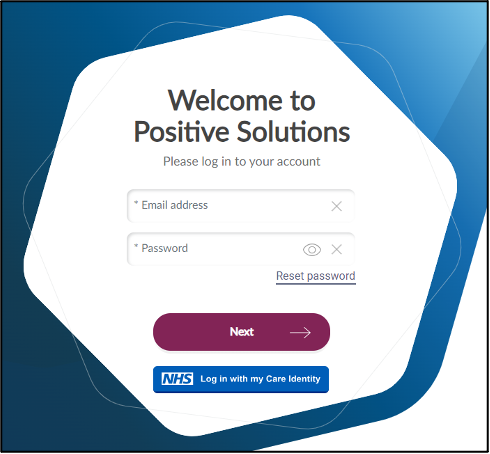
Two Factor Authentication
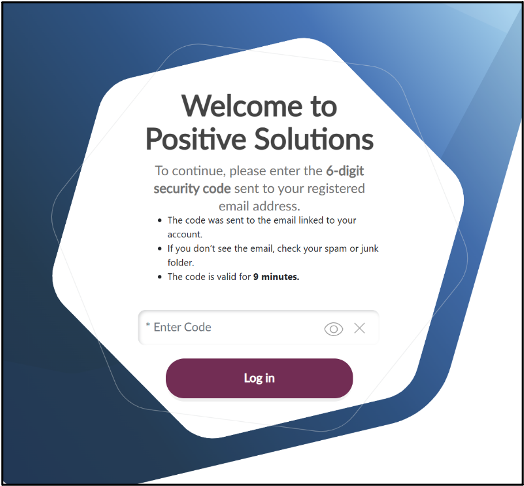
HxCare has now introduced a two-factor authentication when logging into tenant admin or HxCare. All company and site administrators must use 2-Factor Authentication (2FA) to access the platform. To meet this mandate, we have updated our administration platform with 2FA functionality.
When logging into HxCare as an administrator, you’ll be prompted to enter a security code sent to your registered email after your password has been verified. You will have 9 minutes to enter the code before a new one is required.
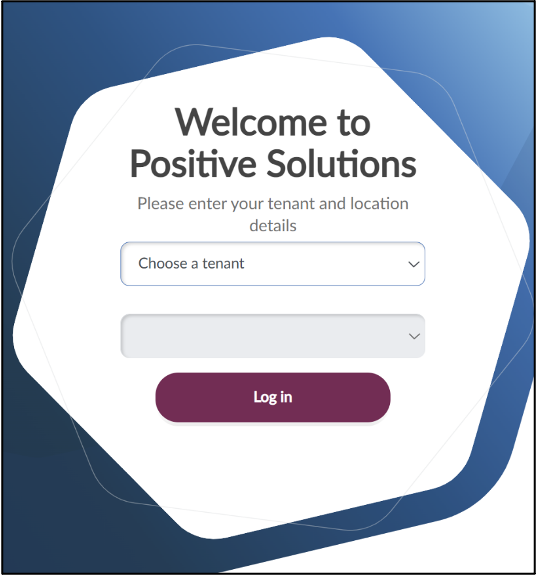
You will then be asked to select which tenant you wish to login to if you have more than one location
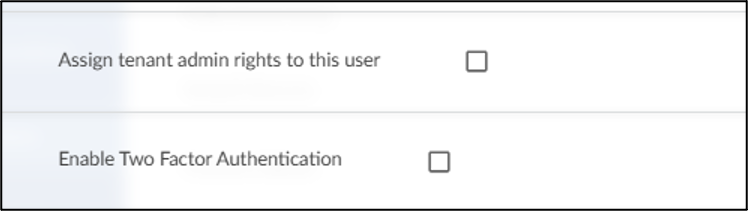
While 2FA is only mandatory for administrators, you can optionally enable it for all users in your system. You can do this by logging into tenant admin. Click into the users tab and select the user you wish to enable or disable this for and either tick or untick the box.
The landing page provides two options:
- Tenant Admin – Where locations and users are created.
- HxCare –The HxCare portal where service users and their medication are managed for the care home.
Select Tenant Admin.
Note: When first setting up, it is best to create the Locations first. The locations will then be available to assign the users to as you create them.
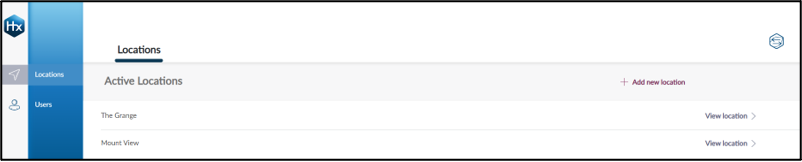
Create and Edit Locations
To create a location:
- Click the Locations tab and then click add new location.
- Enter the location details and click add location.
Note: For HxCare, the Public name will be the same as the Location name. You also need to enter your ODS code.
The location can now be seen as an Active Location. Continue to add more locations as required.
Editing A Location
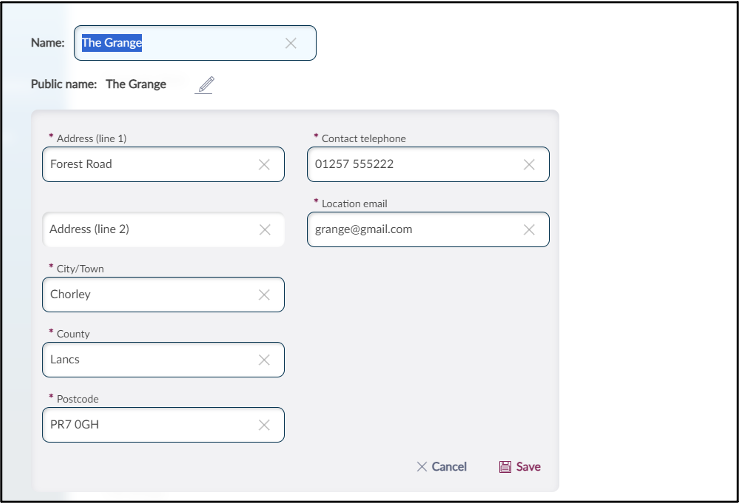
To edit a location, click view location.
Select the pencil icon to edit. If changing the Location or Public name, just click outside of the field to save. If changing the contact details, click save once changes have been made.
Creating Users
Once the Locations have been created, Users can be added and allocated to more than one of the locations if needed. Users can be added to HxCare by using an email address.
- Click the users tab from the navigation pane.
- Click add new user.
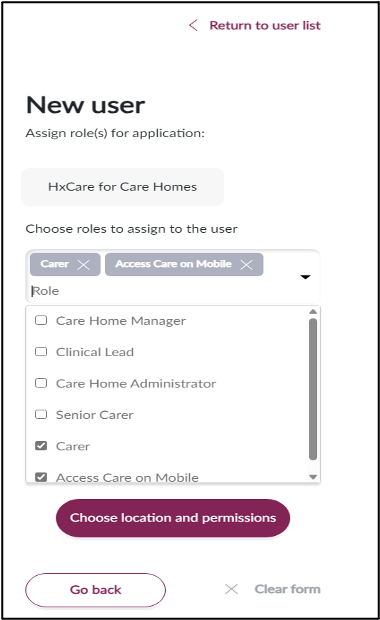
- Complete the user’s details and click assign user role.
- Select the Role the user will be performing (multiple selections can be made if required). Click Choose Location and Permissions.
- Select the Location the user will be assigned to (multiple locations can be selected if the user works at more than one location). Click the send invite to user.
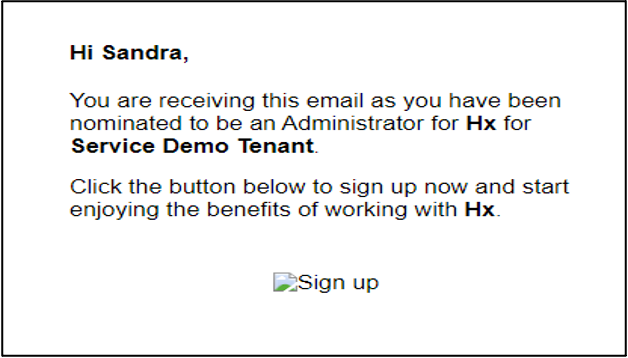
The user will receive an email inviting them to sign-up. The user should click on the sign-up link and create a password meeting the requirements described on the screen, then click create account.
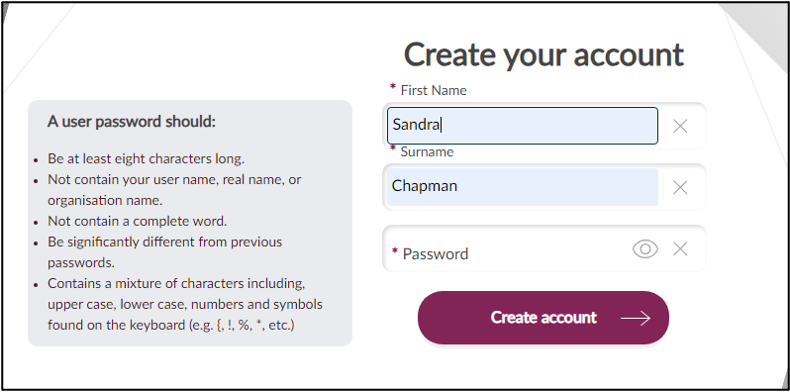
Note: The link will expire after 24 hours.
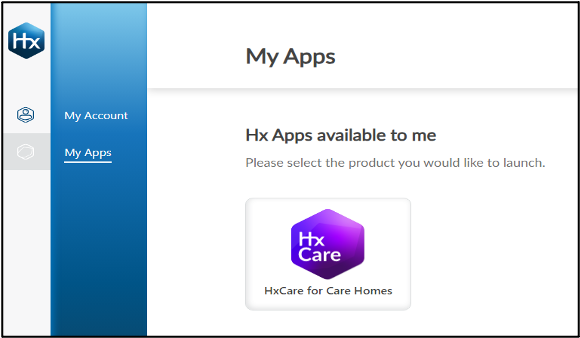
The user will be directed to the Hx landing page where they can gain access to the HxCare portal: HxCare for Care Homes.
Editing A User
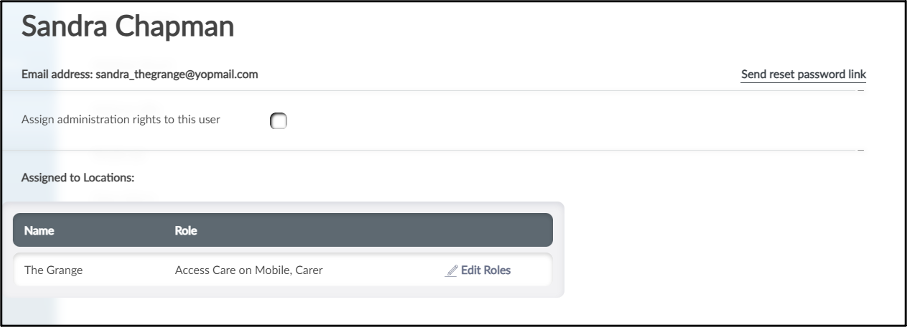
To edit a user, locate the user in the list of active users and click view user. The user’s name and their current role(s) are displayed.
- Click the edit roles to deselect roles which are no longer applicable and to add those which are new, then click save roles.
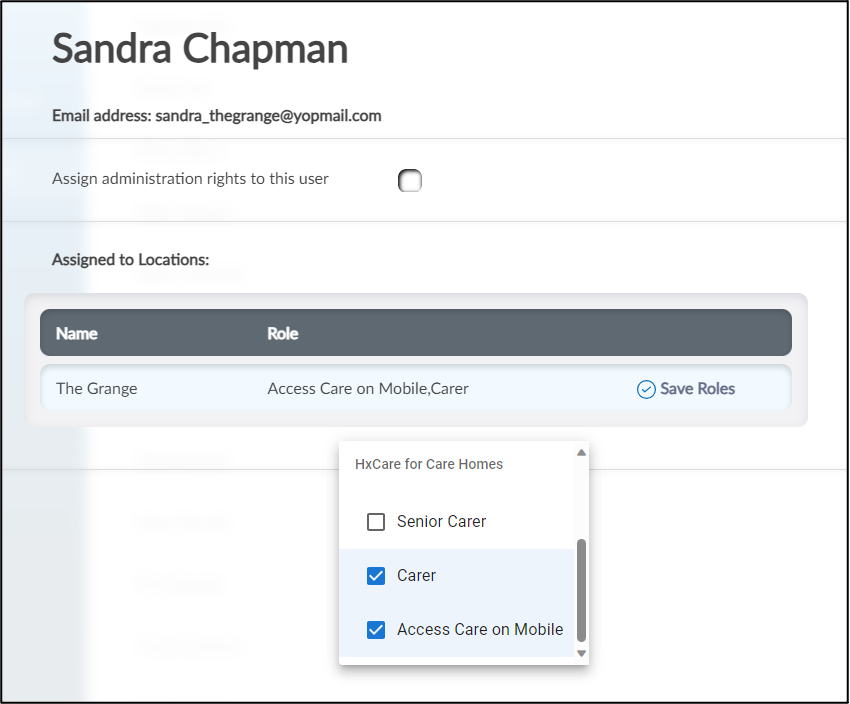
Note: It is not possible to amend a user’s details, if this is required remove the user and recreate.
In the active users list, click the three vertical dots on the right of the screen next to the user’s name.
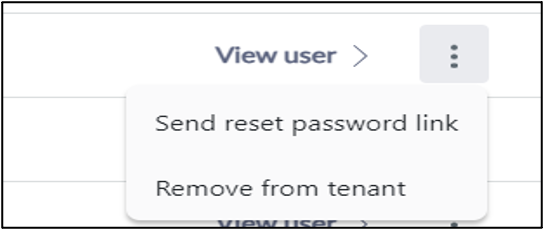
Select remove from tenant and when prompted confirm yes to remove the user.
Reset User Passwords
In the active users list select the three vertical dots on the right of the screen next to the users name.
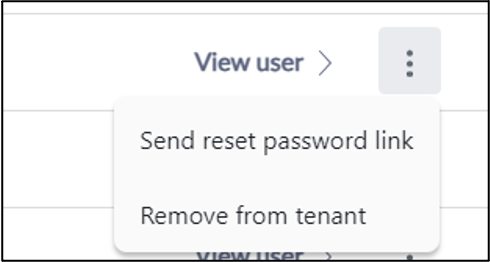
Click send reset password link. A message will be displayed confirming that an email has been sent.
Further Help & Support
For help with how to use HxCare, please contact our Customer Support & Training Specialists on 01257 235940, selecting option 2 for functional help or email customer@positive-solutions.co.uk.